|
Todoist Assistant is a python locally based tool designed to interact with the Todoist API. It fetches project and task data, generating insightful reports and statistics to help you track productivity trends. It offers the following key features: 1. Well-written Python library: Easily fetch, manage, and modify Todoist data, including activities, projects, and events. 2. Interactive plots: Visualize productivity trends and history (far beyond Todoist's default 4-week bar charts). Analyze data such as task label distributions or productivity trends from the creation of your Todoist account. 3. Automations: Automate repetitive tasks like rolling out templates based on specific labels. |

|
The Todoist Assistant is designed to interact seamlessly with the Todoist API, providing modular functionalities for automation, data visualization, and productivity insights. Below is a high-level diagram and explanation of the system's architecture and key ideas.
flowchart TD
    A["Core Modules"] --> B["Automation Layer"]
    A --> C["Database Layer"]
    A --> D["Visualization Layer"]

    B --> E["Templates"]
    B --> F["API Integrations"]
    B --> G["Custom Automation Scripts"]

    C --> H["Tasks"]
    C --> I["Projects"]
    C --> J["Activity"]

    D --> K["Project Trends"]
    D --> L["Control Panel"]
    D --> M["Tasks Plots"]

    subgraph TodoistAssistant["Todoist Assistant"]
        style TodoistAssistant fill:#2d333b,stroke:#8b949e,stroke-width:2px,color:#e6edf3
        A
    end

    subgraph DatabaseLayer["Database Layer"]
        style DatabaseLayer fill:#1f2937,stroke:#4b5563,stroke-width:2px,color:#e6edf3
        C
        H
        I
        J
    end

    subgraph VisualizationLayer["Visualization Layer"]
        style VisualizationLayer fill:#1e3a5f,stroke:#4878bc,stroke-width:2px,color:#e6edf3
        D
        K
        L
        M
    end

    subgraph AutomationLayer["Automation Layer"]
        style AutomationLayer fill:#301934,stroke:#7c3aed,stroke-width:2px,color:#e6edf3
        B
        E
        F
        G
    end

    TodoistAssistant --> DatabaseLayer
    TodoistAssistant --> VisualizationLayer
    TodoistAssistant --> AutomationLayer

    classDef darkNode fill:#374151,stroke:#6b7280,color:#e6edf3;
    class A,B,C,D,E,F,G,H,I,J,K,L,M darkNode;
-
Separation of Concerns:
Each module handles a specific task—fetching data, processing it, or visualizing results—so you can easily swap out or extend functionality without touching the core. -
Core Modules:
- Database Module:
Acts as the intermediary between the Todoist API and your app. It’s subdivided into:- Projects: Manage active/archived projects.
- Tasks: Add, delete, or template-insert tasks.
- Activity: Gathers and aggregates Todoist events such as task additions, deletions, and completions.
- Dashboard & Plots:
Use Streamlit to build interactive dashboards. The Plots module transforms raw data into engaging visualizations that showcase productivity trends. - Automations: Automations allow custom triggers and actions like fetching activity, apply templates, ...
- Integrations (experimental)
Integrations open the door to connect with external services like Twitter or Gmail. The Gmail Tasks automation can automatically create Todoist tasks from actionable emails. - Agentic AI Module (incoming) Summarizes activity logs into actionable insights, provides on-demand or daily productivity snapshots, detects trends like peak hours or bottlenecks, tracks progress toward goals, supports plain-language queries, and tailors reports by projects, labels, or timeframes.
- Database Module:


Note for windows: While the Todoist-Stats-App can be used on Windows, it is highly recommended to set it up in a Linux environment for the best experience.
If you are on Windows, consider installing Ubuntu 20.04 (WSL) to get started with a Linux subsystem.
-
Install Python 3
Make sure Python 3 is installed on your system.
On Ubuntu/Debian, you can install it via:sudo apt update sudo apt install -y python3 libpq-dev
-
Install Required Tools
- Git
- Make (for Makefile support)
- UV (Python package manager)
-
Clone and Set Up the Repository
git clone https://github.com/mtyrolski/todoist-assistant.git
cd todoist-assistant
# Set up the Python environment & dependencies
uv run python3 -c "print('packages installed')"
cp .env.example .env
# Open .env file (copy)
nano .env
# Inside a .env file, edit your configuration and access key
API_KEY = 'your_todoist_api_key'
then do
ctrl + x-->y-->enterto save the file. Where to find Todoist API Key?Go to App --> Settings --> Integrations --> Developer --> API token --> Copy API token -
Setup Todoist Assistant Launch initialization of the local environment which will fetch your tasks, events and projects from last 10 years (can take a few minutes).
make init_local_env
-
(Optional) In case of any fetching error, you can setup env from beginning using two steps Clear and setup local env from beinning.
make clear_local_env
make init_local_env- (Optional) Update your local env from make
If you want to update your local environment (from shell instead of control panel) with the latest activity data + run templates and label-based automations on your todoist account, you can run:
make update_env
The following Makefile commands are available for managing the local environment and running the dashboard:
make init_local_env: Initializes the local environment by syncing history and fetching activity (Only during first run).make run_dashboard: Launches the Streamlit dashboard for Todoist Assistant.make clear_local_env: Clears local environment data by removing the activity cache.
Fetch and update your Todoist activity data:
python3 -m todoist activity --nweeks N_WEEKSThis command retrieves, summarizes, and saves the latest activity data locally.
This line launches all automations defined in configs/automations.yaml. Update or add own config for customization.
python3 -m todoist.automations.run --config-dir configs --config-name automations
To run the dashboard, execute the following command:
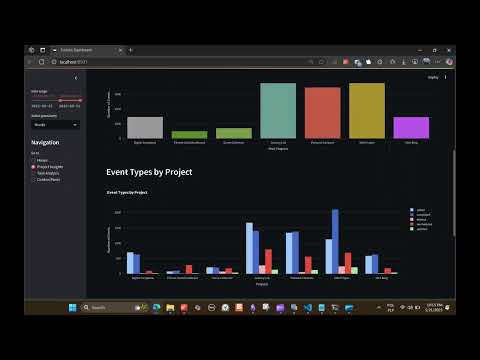
streamlit run dashboard.py| This command starts a Streamlit application that aggregates and displays data retrieved from the Todoist API. The dashboard processes inputs such as active projects, archived projects, and activity events. You can also navigate to Control Panel to launch automations in GUI. |

|
Integrate Todoist-Assistant into your projects using the provided API. Here are some examples:
Fetching activity
from todoist.types import Event, is_event_rescheduled
from todoist.database.base import Database

dbio = Database('.env') # Initialize the database connection (in fact, bridge to local cached data and connection to Todoist API)
# Fetch events from Todoist API with 5 weeks
activity: list[Event] = dbio.fetch_activity(max_pages=5)
len(activity)
1324
n_reschedules = sum(map(is_event_rescheduled, activity))
print(f"Number of rescheduled events: {n_reschedules} ( {(round(n_reschedules / len(activity) * 100, 2))}% )")
Querying activity data: 6page [00:00, 2818.12page/s] Number of rescheduled events: 186 ( 14.05% )
Inserting tasks
from todoist.types import Project

projects: list[Project] = dbio.fetch_projects(include_tasks=True)
dbio.insert_task(content='Buy milk', project_id=projects[0].id) # Insert a new task into the first project
Create mapping to play with your todoist history
project_name_to_tasks = {
    project.project_entry.name: project.tasks for project in projects
}
See source files to full capabilities:
- todoist/database/base.py
- todoist/database/dataframe.py
- todoist/database/db_activity.py
- todoist/database/db_labels.py
- todoist/database/db_projects.py
- todoist/database/db_tasks.py
Extend Todoist-Assistant with custom automation scripts. Automations define actions triggered by Todoist events, enhancing data processing before visualization.
Automation Configuration. The automations.yaml file defines the available automations that can be executed either through the dashboard control panel or via manual command-line launches.
Configuration Structure. The configuration file (configs/automations.yaml) defines several types of automations:
automations:
  # Task templates for creating structured sets of tasks
  - _target_: todoist.automations.template.Template
    task_templates:
      # Call template with preparation and follow-up subtasks
      call:
        _target_: todoist.automations.template.TaskTemplate
        content: Call
        description: Call someone
        due_date_days_difference: 0
        priority: 1
        children:
          - _target_: todoist.automations.template.TaskTemplate
            content: Setup meeting
            description: Should be put on calendar.
            due_date_days_difference: -3
          - _target_: todoist.automations.template.TaskTemplate
            content: Prepare content for a meeting
            description: Prepare notes and bullet points to cover.
            due_date_days_difference: -1

      # Paper reading workflow template
      read_paper:
        _target_: todoist.automations.template.TaskTemplate
        content: Read Paper
        description: Read a research paper
        due_date_days_difference: 0
        priority: 1
        children:
          # Child tasks omitted for brevity...


  # Activity tracking automations for different time periods
  - _target_: todoist.automations.activity.Activity
    name: Activity Last Week
    nweeks: 1
  - _target_: todoist.automations.activity.Activity
    name: Activity Last Month
    nweeks: 4
...Templateautomation will transform all tasks marked with labels@template-callby attaching specified subtasks,read_paperand other templates similarly. See todoist/automations/template.py for details.Activityfetches all evenets from specific time range. See todoist/automations/activity.py for details.- Similarly other automations defined in (todoist/automations)[todoist/automations] folder can be enhanced or inspected and even implemented new ones by inheritance with base automation todoist/automations/base.py.
The Gmail Tasks automation automatically creates Todoist tasks from actionable emails. This feature:
- Monitors your Gmail for unread emails containing actionable keywords
- Creates corresponding tasks in Todoist with appropriate context and priority
- Avoids creating duplicate tasks
- Runs automatically at configurable intervals
Setup: See Gmail Setup Guide for detailed configuration instructions.
Keywords detected: todo, action required, follow up, deadline, urgent, reminder, task, meeting, schedule, and more.
Created tasks include:
- Email subject as task content
- Sender information and email preview in description
- Priority based on urgency keywords
gmail-tasklabel for easy identification
Map archived projects to active ones for accurate stats and reporting. This step is essential because the Todoist API does not automatically link archived projects to their respective parent or related active projects. Without this alignment, the statistics and insights derived from the data could become fragmented and misleading. By manually mapping these relationships, we ensure a comprehensive and accurate representation of productivity trends and task history. Perhaps in future it will be somehow automated (contributions are welcome!).
link_adjustments = {
    'Old Project 0': 'Current active root project',
    'Old Project 1 ⚔️': 'Current active root project',
    'Old Project 2': 'Another active project 🔥⚔️🔥',
    'Old Project 3': 'An old master archive project'
}
For example, in the statistics, Old Project 1 will be reflected under the correct active project (Current active root project). Archived projects will no longer appear as standalone entities, making the reports cohesive and more insightful.
Contributions are welcome! Open an issue or submit a pull request with improvements or new features.
This project is licensed under the MIT License. See LICENSE for details.