This README describes the Duo Universal Prompt node (current and recommended) and the Duo node (deprecated) for integrating Duo two-factor authentication into Ping Identity authentication journeys.
The Duo Universal Prompt node integrates with the Duo service to provide two-factor authentication using Duo’s Universal Prompt interface. This node uses the Duo Web v4 SDK and replaces the deprecated Duo node that relied on Duo’s Traditional Prompt.
The node redirects users to the Duo service, where they complete registration or authentication, and then returns them to the Ping Identity journey.
In a typical authentication journey:
- The user reaches the Duo Universal Prompt node.
- The node redirects the user to the Duo service.
- The user completes Duo registration or authentication.
- Duo redirects the user back to Ping Identity.
- The journey resumes based on the authentication result.
| Product | Available |
|---|---|
| PingOne Advanced Identity Cloud | Yes |
| PingAM (self-managed) | Yes |
| Ping Identity Platform (self-managed) | Yes |
The Duo Universal Prompt node requires the following inbound data:
| Description | Attribute Name | Source |
|---|---|---|
| Username | username |
Shared State |
Before using this node:
- You must have a Duo account.
- PingOne Advanced Identity Cloud must be integrated with the Duo authentication service.
- This node replaces the deprecated Duo node that used Duo’s Traditional Prompt.
The following properties are configurable:
| Property | Description |
|---|---|
| Client ID | The client ID provided by Duo |
| Client Secret | The client secret provided by Duo |
| API Hostname | The Duo API hostname |
| Failure Mode When Duo Is Down | Determines behavior when Duo health checks fail: • OPEN – Skip two-factor authentication and proceed to the True outcome • CLOSED – Fail authentication and proceed to the False outcome |
| OpenAM Callback URL | Callback URL used to return to Ping Identity and resume the journey |
- If an Error outcome occurs, the error message is written to the shared state.
| Outcome | Description |
|---|---|
| True | Duo authentication succeeded |
| False | Duo authentication failed |
| Error | An error occurred during authentication |
Deprecated
Ping Identity has deprecated the Duo node because Duo has deprecated the Traditional Duo Prompt.
Use the Duo Universal Prompt node instead.
A Duo integration for ForgeRock's Identity Platform 7.0 and ForgeRock Identity Cloud. This integration handles:
- Registration of the users device
- Second factor authentication
- Device Management (if applicable)
Installation
- Download the latest version of the Duo integration from here.
- Copy the .jar file into the ../web-container/webapps/openam/WEB-INF/lib directory where AM is deployed.
- Restart the web container to pick up the new node. The node will then appear in the authentication trees components palette.
Duo Configuration
- Create a Duo Account at https://signup.duo.com/.
- Log in to the Duo Admin console and click on the 'Applications' tab.
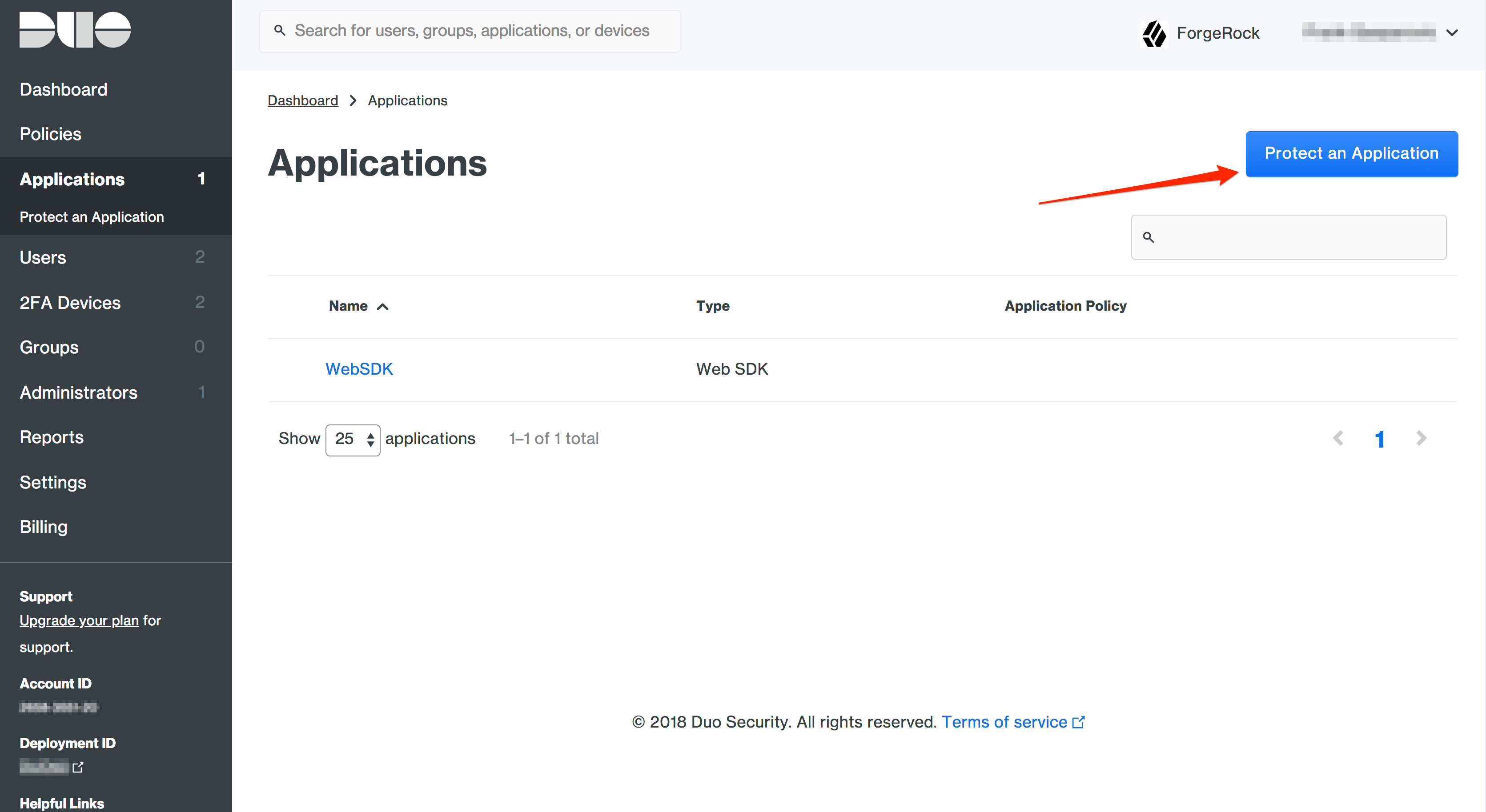
- Click 'Protect an Application'.
- In the search bar type in 'Web SDK'.
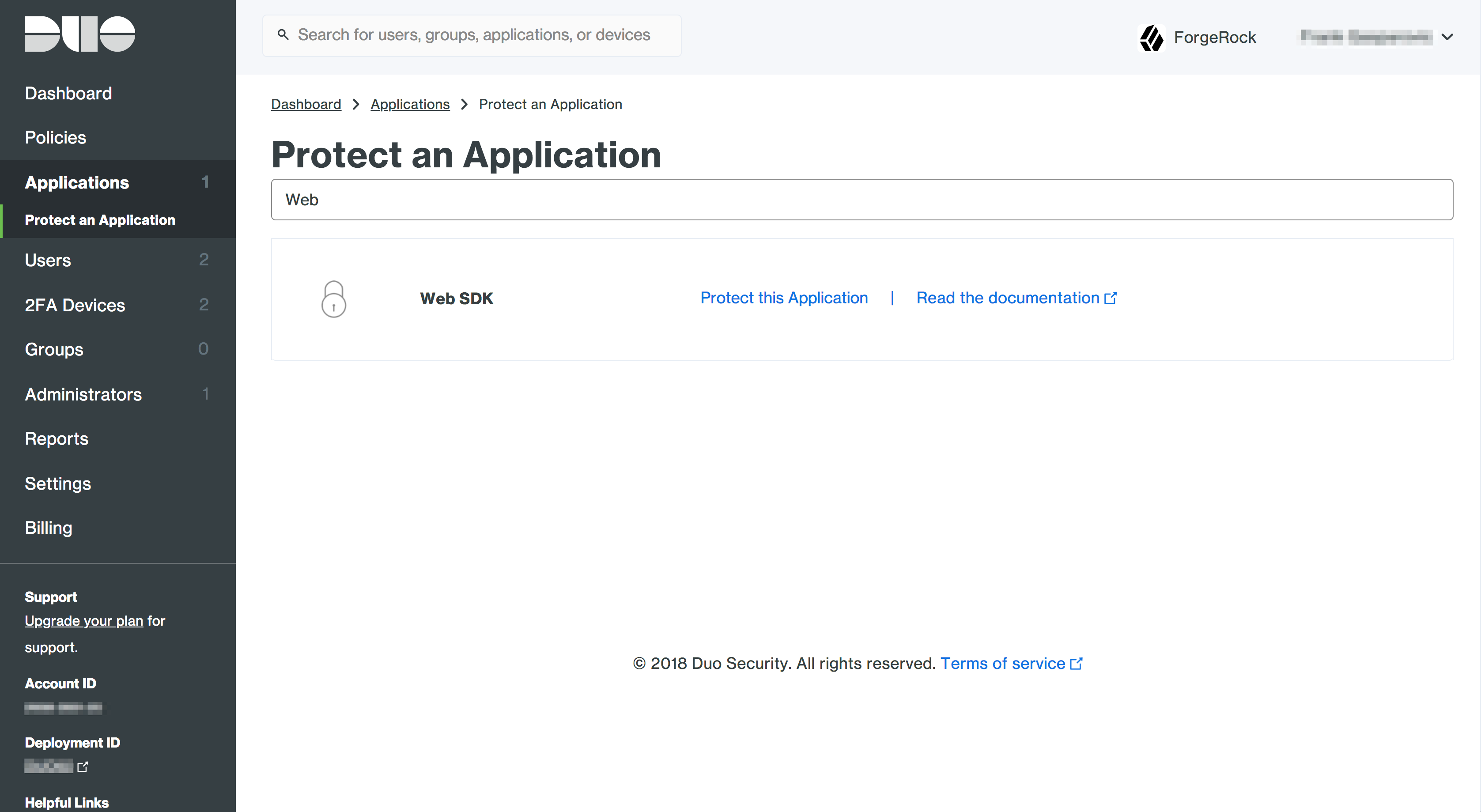
- Note down the Integration Key, Secret Key and API hostname. Depending on the Duo tenant, these values can also be called Client ID, Client Secret, and API hostname respectively. These will be used in the node configuration.


ForgeRock Configuration
- Log into your ForgeRock AM console.
- Create a new Authentication Tree.

- Setup the following configuration for the tree that was just created.

- Paste in the Integration Key (Client ID), Secret Key (Client Secret) and API hostname for the corresponding Duo Web SDK Application.
- Generate an application key. It must be at least 40 characters long random string. You can generate a random string in Python with:


import os, hashlib
print hashlib.sha1(os.urandom(32)).hexdigest()- Paste in your application key into the corresponding field in the node configuration.
- Set Duo Javascript URL.
Usage
- Log into the Tree that was created in the steps above by going to https:///am/XUI/?realm=alpha&authIndexType=service&authIndexValue=Duo
- Log in the your ForgeRock username and password.

- Follow the prompts to register a new device or if you've already registered, use Duo to log in.


