This is a sample application to understand android activity life cycle
To navigate transitions between stages of the activity lifecycle, the Activity class provides a core set of six callbacks, the system invokes each of these callbacks as an activity enters a new state.
onCreate()
onStart()
onResume()
onPause()
onStop()
onDestroy()
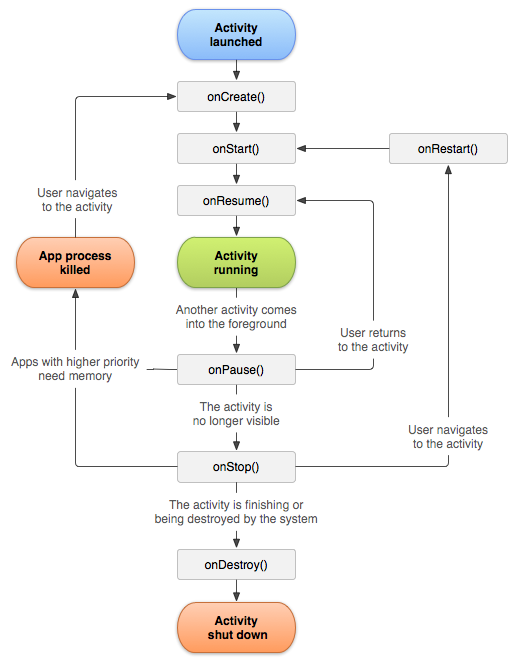
You must implement this callback, which fires when the system first creates the activity. On activity creation, the activity enters the Created state. In the onCreate() method, you perform basic application startup logic that should happen only once for the entire life of the activity. For example, declaring the user interface (defined in an XML layout file), defining member variables, and configuring some of the UI.
In the entire life cycle of Actvity onCreate() method finishes execution soon after the activity enters the Started state, and the system calls the onStart() and onResume() methods in quick succession. The next section explains the onStart() callback.
When the activity enters the Started state, the system invokes this callback. The onStart() call makes the activity visible to the user, as the app prepares for the activity to enter the foreground and become interactive. For example, this method is where the app initializes the code that maintains the UI.
The onStart() method will call if the activity onStop method has been triggered earlier and sometimes after the activity is brought into the forground. Consider an example, if you have started an activity say, FirstActivity then onStart() will trigger soon after the execution of The onCreate() and on a button click you started another activty, say SecondActivity then that will be in the forground, FirstActivity will be paused and will trigger onStop method of FirstActivity after the execution of onResume() method of SecondActivity. And onStart() of FirstActivity will trigger if your finishing SecondActivity.
See the log
D: Activity Life Cycle : :FirstActivity in onCreate()
D: Activity Life Cycle : :FirstActivity in onStart()
D: Activity Life Cycle : :FirstActivity in onResume()
D: Activity Life Cycle : :FirstActivity in onPause()
D: Activity Life Cycle : :SecondActivity in onCreate()
D: Activity Life Cycle : :SecondActivity in onStart()
D: Activity Life Cycle : :SecondActivity in onResume()
D: Activity Life Cycle : :FirstActivity in onStop()
D: Activity Life Cycle : :SecondActivity in onPause()
D: Activity Life Cycle : :FirstActivity in onRestart()
D: Activity Life Cycle : :FirstActivity in onStart()
D: Activity Life Cycle : :FirstActivity in onResume()
D: Activity Life Cycle : :SecondActivity in onStop()
D: Activity Life Cycle : :SecondActivity in onDestroy()
The onStart() method completes very quickly and, as with the Created state, the activity does not stay resident in the Started state. Once this callback finishes, the activity enters the Resumed state, and the system invokes the onResume() method.
When the activity enters the Resumed state, it comes to the foreground, and then the system invokes the onResume() callback. This is the state in which the app interacts with the user. The app stays in this state until something happens to take focus away from the app. Such an event might be, for instance, receiving a phone call, the user’s navigating to another activity, or the device screen’s turning off.
A common doubt you may have is, does dialog dismiss will invoke onResume()?
A Dialog by itself is not an Activity, so will not replace the current Activity at the top of the stack, so will not cause anything to pause and hence dialog dismiss will not invoke onResume()
A dialog does not need to be implemented by a Dialog class, however. For example, it is not uncommon to implement one with an Activity whose theme is set to that of a dialog. In this case, displaying the dialog-as-an-Activity will cause the new Activity to be on the top of the stack, pausing what previously was there.
The system calls this method as the first indication that the user is leaving your activity (though it does not always mean the activity is being destroyed); it indicates that the activity is no longer in the foreground (though it may still be visible if the user is in multi-window mode). Use the onPause() method to pause or adjust operations that should not continue (or should continue in moderation) while the Activity is in the Paused state, and that you expect to resume shortly. There are several reasons why an activity may enter this state. For example:
- Some event interrupts app execution, as described in the onResume() section. This is the most common case.
- In Android 7.0 (API level 24) or higher, multiple apps run in multi-window mode. Because only one of the apps (windows) has focus at any time, the system pauses all of the other apps.
- A new, semi-transparent activity (such as a dialog) opens. As long as the activity is still partially visible but not in focus, it remains paused
You should usually use the onPause() callback to:
- Stop animations or other ongoing actions that could consume CPU.
- Commit unsaved changes, but only if users expect such changes to be permanently saved when they leave (such as a draft email).
- Release system resources, such as broadcast receivers, handles to sensors (like GPS), or any resources that may affect battery life while your activity is paused and the user does not need them.
- Pausing the admob ads
NOTE: Generally,you should not use
onPause()to store user changes (such as personal information entered into a form) to permanent storage. The only time you should persist user changes to permanent storage within onPause() is when you're certain users expect the changes to be auto-saved (such as when drafting an email). However, you should avoid performing CPU-intensive work during onPause(), such as writing to a database, because it can slow the visible transition to the next activity (you should instead perform heavy-load shutdown operations during onStop()).
When your activity is no longer visible to the user, it has entered the Stopped state, and the system invokes the onStop() callback. This may occur, for example, when a newly launched activity covers the entire screen. The system may also call onStop() when the activity has finished running, and is about to be terminated.
The onRestart() is called only if onStop() has been called before
There are a few of key scenarios in which your activity is stopped and restarted:
- The user opens the Recent Apps window and switches from your app to another app. The activity in your app that's currently in the foreground is stopped. If the user returns to your app from the Home screen launcher icon or the Recent Apps window, the activity restarts.
- The user performs an action in your app that starts a new activity. The current activity is stopped when the second activity is created. If the user then presses the Back button, the first activity is restarted.
- The user receives a phone call while using your app on his or her phone.