Cook is a macOS command line tool wrapped around Riley Testut's AltSign to automate common iOS development tasks, such as managing iOS certificates, app identifiers, devices, provisioning profiles and resigning .ipa files. It works with free Apple IDs (not enrolled in the developer program).

./cook [AUTHENTICATION] [RECIPE] [RECIPE_ARGUMENTS]
-h, --help prints usage information
-v, --verbose enables verbose mode
-j, --json use json output (all --output-* args are ignored in this mode)
To authenticate you can pass the following arguments to any recipe:
--appleId (your Apple ID's email) and --password (Apple ID's Password).
If you prefer, you can set these environment variables instead: COOK_APPLEID_EMAIL and COOK_APPLEID_PASSWORD.
Pass --2fa-code to specify the six-digit two factor authentication code.
You can also specify --base64-anisette-data to use custom base64 encoded anisette data in your requests (for example, generated with anisette_server recipe).
NOTE: Your Apple ID is never sent to anyone but Apple. Feel free to create a new Apple ID account to test it.
-
create_certificateCreate certificate (.pemor.p12) with arguments:--machine-name Optional machine name (defaults to 'cook') --input-csr Optional path to an existing CSR file --output-pem Path/Directory where to save output PEM file --output-p12 Path/Directory where to save output p12 file --p12-password Optional P12 password, defaults to blank -f Force certificate revocation if needed -
register_appRegister a new app with arguments:--app-name App name to register --app-bundle-id Bundle identifier to register -f Force removal of previous app if needed -
register_deviceRegister device with arguments:--name Device name (use quotes if it contains spaces) --udid Device udid -
update_profileUpdate & download provisioning profile with arguments:--bundle-id Bundle identifier of the app --output-profile Path/Directory where to save updated profile -f Force remove app ID and then readd it -
download_profilesDownload provisioning profiles with arguments:--bundle-id Optional, to specify an app's identifier (defaults to all apps) --output-folder Directory where to save the profiles -
resignResign ipa file with arguments:--ipa Path to .ipa file to resign --output-ipa Optional path to resigned ipa (if not specified, original is overwritten) --p12 Optional path to P12 certificate to use for resigning --p12-password Optional P12 password --machine-name Optional machine name to use when adding certificate (defaults to 'cook', ignored if --p12 is specified) -f Revoke certificate (if --p12 is not specified) if needed, register app id if needed -
anisette_serverListen to a specific port and respond with freshly generated base64 encoded anisette data. Arguments:--port Server port (defaults to 8080) --secret Secret path (the url will be 127.0.0.1:{PORT}/{SECRET})
In JSON mode (-j, --json flag), command output is formatted as JSON.
See possible JSON responses
 'success':               '0' or '1'
 'error':                 Error description (if success is 0)

 - create_certificate recipe
   'pem_cert':            Plain text PEM cert
   'base64_p12_cert':     Base 64 encoded P12 cert
   'p12_password':        Plain text P12 password

 - update_profile recipe
   'base_64_profile':     Base 64 encoded mobileprovision

 - download_profiles recipe
   'profiles_count':      Number of profiles downloaded
   'base64_profile_i':    i-th base 64 encoded mobileprovision (0<i<=profiles_count)

 - anisette_server recipe
   'base64_encoded_data': Base 64 encoded anisette data
Here are some real world examples on how to use cook (authentication part is omitted):
See examples
-
Export
.pemcertificate generated using an existing.csrfile:./cook create_certificate --input-csr ~/desktop/req.csr --output-pem ~/desktop/cert.pem
-
Export
.p12certificate with password123:./cook create_certificate --output-p12 ~/desktop/cert.p12 -—p12-password "123"
-
Register app named
My Fancy Appwith bundle identifiermy.fancy.app:./cook register_app --app-name "My Fancy App" --app-bundle-id my.fancy.app -
Register a device named
My iPhone 11 Prowith udidDEVICE_UDID:./cook register_device --name "My iPhone 11 Pro" --udid "DEVICE_UDID"
-
Update and export a provisioning profile for app with bundle identifier
my.fancy.app:./cook update_profile --bundle-id my.fancy.app --output-profile ~/desktop/profile.mobileprovision -
Download all existing provisioning profiles:
./cook download_profiles --output-folder ~/desktop/profiles/ -
Resign
.ipafile using a local p12 certificate (obtained withcreate_certificaterecipe):./cook resign --ipa ./app.ipa --p12 ./cert.p12 --p12-password "123" -
Resign
.ipafile using a new certificate (-frevokes current one if necessary)./cook resign --ipa ./app.ipa --output-ipa ./app_signed.ipa -f
Download latest cook.zip release from the releases page to your downloads folder and unzip it (or build manually from Xcode).
If you haven't already, you should install and enable the Mail.app plugin called CookMailPlugin (this is needed to fetch the correct headers to communicate with Apple's servers).
See steps to install CookMailPlugin (only once):
Run the following commands:
$ cd ~/downloads/cook/
$ sudo codesign -f -s - CookMailPlugin.mailbundle
$ sudo mkdir -p /Library/Mail/Bundles
$ sudo cp -R CookMailPlugin.mailbundle /Library/Mail/Bundles
$ sudo defaults write "/Library/Preferences/com.apple.mail" EnableBundles 1
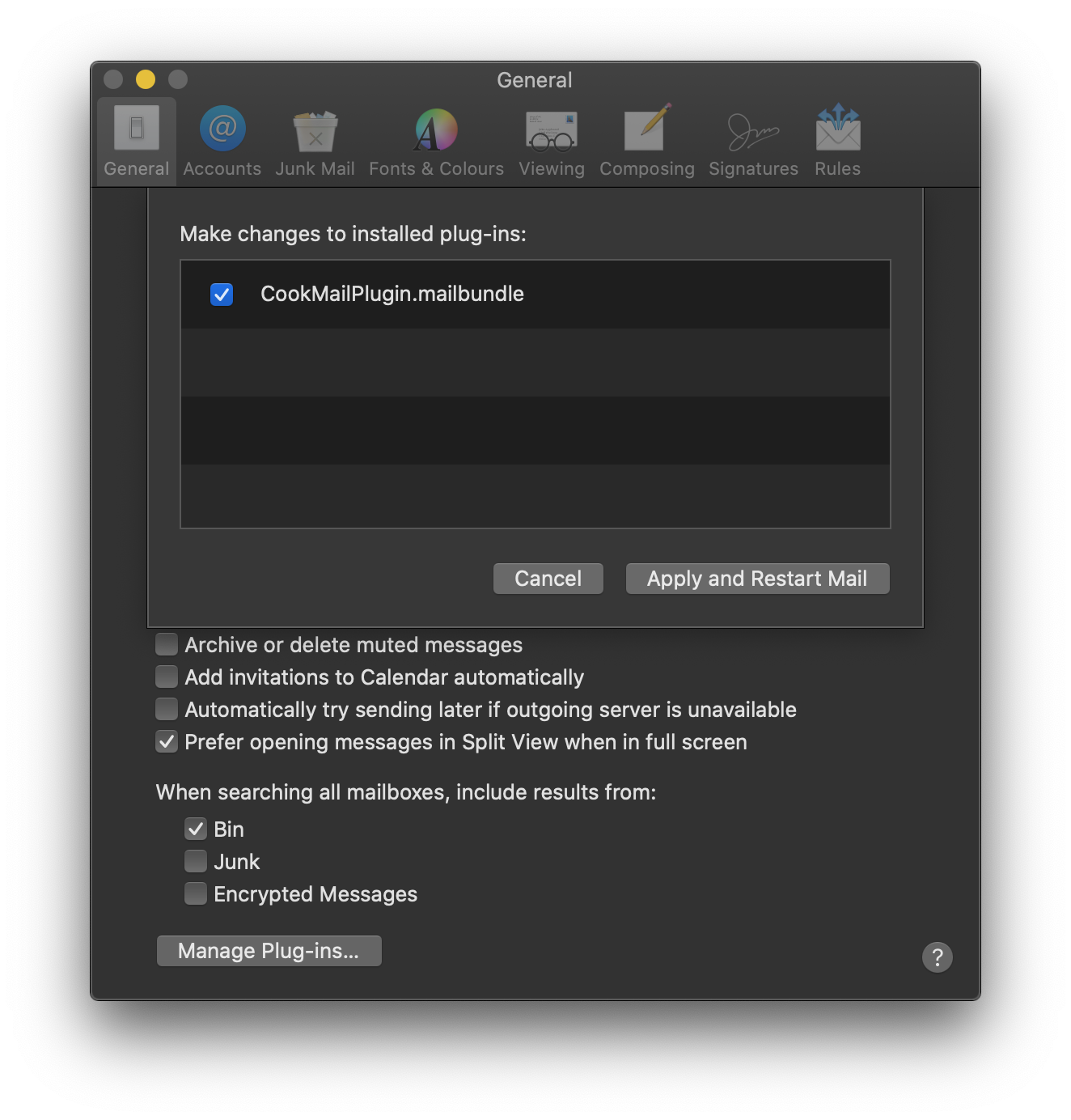
Then enable the plugin:
- Open
Mail.appand from the Menu bar go toMail->Preferences - Click on
Manage Plug-ins... - Enable
CookMailPlugin.mailbundle - Click
Apply and Restart Mail - Done!
Once the plugin is installed and enabled, you can use cook from the command line:
$ cd ~/downloads/cook/
$ ./cook -hRun the following commands:
$ cd ~/downloads
$ git clone https://github.com/n3d1117/cook.git
$ cd cook/
$ open cook.xcodeproj- Riley Testut's AltSign framework (part of AltStore)
- Riley Testut's
AltPlugin.mailbundle(part of AltServer) - Kabir Oberai for the authentication code in AltSign
- appdb for the idea!
- Zond80 for handling 2FA code
Licensed under GNU General Public License v3.0. See LICENSE file for further information.