A plugin for Krita that provides quick access to brush presets and shortcut management.

If you find this tool helpful, you can support its development:

- In the "Quick Brush Sets" section, activate the grid you want to add to.
- Select the brush preset you want to add from Krita's brush preset.
- Click the "AddBrush" button in the docker.
- The selected preset will be added to the active grid.


- In the "Quick Actions" section, activate the grid you want to add to.
- Click the "Actions" button to open the shortcut selection popup.
- Select the action you want to add from the table.
- Click the "AddAction" button.
- The selected shortcut will be added to the active grid.


- Brush Sets Popup: Press
Wto show/hide the brush sets popup - Actions Popup: Press
Tabto show/hide the actions popup
Edit the following value to change shortcut key and icon/button size:
quick_access_manager\popup\brush_sets.pyBrushSetsPopupShortcutBrushIconSize
quick_access_manager\popup\actions.pyActionsPopupShortcutActionButtonSizeXActionButtonSizeY

A gesture-based control system that allows you to trigger actions using keyboard + mouse movements.
- 9-Directional Gestures: Execute different actions based on 8 directional swipes plus a center tap action
- Multiple Gesture Pages: Each with its own trigger key
- Gesture Actions: Support for brush presets, actions, and docker visibility toggles
- Customizable Sensitivity: Adjust the minimum pixel movement required to trigger gestures
- Visual Configuration: Intuitive UI with arrow icons and action previews
First-time setup: When opening the gesture configuration dialog for the first time, you may see an empty "1" tab. Ignore it and simply click the "+" button to create your first gesture page.
-
Open Configuration: Click the "Gesture" button in the Quick Access Manager docker to open the gesture configuration dialog
-
Configure Trigger Key:
- Click the center "Config Key" button
- Press any key (A-Z, 0-9, F1-F12, etc.) to assign it as the gesture trigger
- Configure the center tap action (executed when you press and release the key without moving)
- Important: If the key is already assigned to a Krita shortcut, you must remove it first, as Krita's native shortcuts take priority
-
Configure Directional Gestures:
- Click any arrow button to configure an action for that direction
- Choose from:
- Brush Preset: Select the currently active brush
- Action: Choose any Krita action from the list
- Docker Toggle: Show/hide a specific docker by name
- None: Clear the gesture configuration
-
Add More Gesture Pages:
- Click the "+" button to create additional gesture configurations
- Each page can have its own trigger key and 9 actions
-
Settings:
- Click the "Settings" button to access:
- Enable Gesture System: Toggle the entire gesture system on/off (Require Krita restart)
- Minimum Pixels to Move: Adjust gesture sensitivity (1-200 pixels)
- Preview Overlay: Enable/Disable preview overlay
- Click the "Settings" button to access:
-
Execute Gestures:
- Press and hold the configured trigger key
- Move(hover) your mouse in one of the 8 directions
- Release the key to execute the action
- Or simply press and release without moving to trigger the center action
There is a Krita shortcut Toggle Gesture Recognition that can be used to disable gesture recognition temporarily.
Click the image above to watch the gesture system demo video
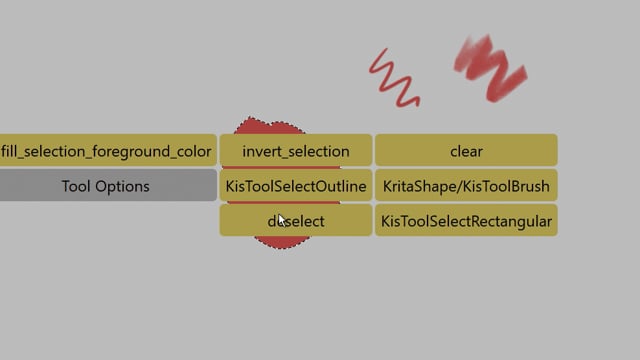
By default, a visual preview overlay appears when you press and hold the gesture key, showing all configured actions for each direction.
You can disable the preview overlay in the gesture settings (top-right corner of the gesture config dialog).
- The dialog is modeless, allowing you to continue working in Krita while it's open
- Gesture detection is automatically disabled while the configuration dialog is active
- All configurations are saved automatically when you click "Save"
- Configuration files are stored in
quick_access_manager\gesture\config\

You can rename actions and add custom icons to the gesture preview overlay.
How to set up aliases:
- Open the gesture config dialog
- Click the "Settings" button in the top-right corner
- Edit the "Alias Settings (JSON)" field
Example:
{
    "KisToolSelectOutline": {
        "alias_name": "Free Hand",
        "icon_name": "free_hand.png"
    },
    "invert_selection": {
        "alias_name": "Invert"
    },
    "Tool Options": {
        "icon_name": "tool_option.png"
    }
}alias_name: Custom name to show instead of the action IDicon_name: PNG file name fromquick_access_manager\gesture\icon\folder- Both fields are optional
- Priority: Icon > Alias Name > Original Name
The gesture system provides a public API for external plugins to pause and resume gesture detection when needed:
from quick_access_manager.gesture.gesture_main import (
    pause_gesture_event_filter,
    resume_gesture_event_filter,
    is_gesture_filter_paused
)

# Pause gesture detection (completely removes event filter)
pause_gesture_event_filter()

# Resume gesture detection (reinstalls event filter)
resume_gesture_event_filter()

# Check if gesture filter is currently paused
if is_gesture_filter_paused():
    print("Gesture detection is paused")
Use Cases:
- Pause gestures during heavy document operations to prevent UI freezing
- Disable gestures when other plugins need exclusive keyboard/mouse control
- Temporarily suspend gesture detection during critical operations
Example:
try:
    pause_gesture_event_filter()
    # Perform heavy operations (e.g., document loading, batch processing)
    open_document(file_path)
finally:
    # Always resume in finally block to ensure gestures are re-enabled
    resume_gesture_event_filter()
Technical Details:
pause_gesture_event_filter(): CallsQApplication.removeEventFilter()for zero overhead when pausedresume_gesture_event_filter(): CallsQApplication.installEventFilter()to restore gesture detection- When paused, the event filter is completely removed from Qt's event chain, eliminating all processing overhead

A dedicated docker for quick brush and layer adjustments, providing instant access to commonly used painting settings. The docker also includes a status bar at the bottom that displays real-time indicators for active selection, alpha lock, and inherit alpha states.
Brush Controls:
- Size Slider: Adjusts brush size from 1 to 1000 pixels with non-linear scaling for precise control of small brushes
- Opacity Slider: Controls brush opacity (0-100%)
- Rotation Widget: Circular dial for intuitive brush rotation adjustment (0-360°)
- Blend Mode Dropdown: Quick access to change the current brush's blending mode
- Reset Button: Instantly reloads the current brush preset to its default settings
Layer Controls:
- Layer Opacity Slider: Adjusts the active layer's opacity (0-100%)
- Layer Blend Mode Dropdown: Change the active layer's blending mode
Color & Brush History:
- Color History: Quick access to recently used colors
- Brush History: Switch between recently used brush presets
The buttons at the bottom of the docker provide quick show/hide toggles for other Krita dockers (e.g., Tool Options, Layers, Brush Presets).
Configuration:
- Settings are stored in
quick_access_manager\config\docker_buttons.json - The file is auto-created with default buttons on first launch if it doesn't exist
- To use custom icons, place PNG files in
quick_access_manager\config\icon(24×24px recommended)
Button Configuration Format:
{
  "button_name": "Display Name",
  "button_width": 50,
  "button_icon": "filename.png",
  "docker_keywords": ["keyword1", "keyword2"],
  "description": "Tooltip text"
}To modify the docker's appearance and behavior, edit the parameters in:
quick_access_manager\quick_brush_adjust_widgets\__init__.py
Available customization options:
- Font sizes for labels and values
- Number of color/brush history items
- Icon sizes for history widgets
- Available blend modes in dropdowns
Use the "Setting" button to customize the UI and layout, including the default font color, background color, and font size for shortcut buttons.

To customize an individual shortcut button, hold Alt and right-click the button.
If the "Use Global Settings" is checked, the color of font and background will use the value in the global config file.

Sort:
To reorder a brush or shortcut button within a grid or move it between grids, hold Ctrl and left-click and drag the button to the desired position or grid.
Advanced Sort:
- To move a shortcut button up by one position within the same grid, hold Shift and left-click the grid name.
- To move a shortcut button down by one position within the same grid, hold Shift and right-click the grid name.
- To move a grid up by one position, hold Shift and left-click the grid name.
- To move a grid down by one position, hold Shift and right-click the grid name.
Remove:
To remove a brush or shortcut from a grid, hold Ctrl and right-click on the button you want to remove.
Remove Grid:
To delete an entire grid, hold Ctrl + Alt + Shift and right-click the grid name.
Rename Grid:
To rename a grid, hold Alt and right-click the grid name.
Activate Grid:
To activate a grid, simply left-click the grid name.
The configuration files for grids and shortcuts are stored in ./quick_access_manager/config.
grids_data.json: Stores the brush preset grids.shortcut_grid_data.json: Stores the shortcut grids.common.json: Stores UI and layout settings.
Note:
There is no profile management function, but you can manually edit these files while Krita is closed.
If you want to reset or backup your settings, you can copy or edit these files directly.
